Perform the following procedure to add and remove members from a conference:
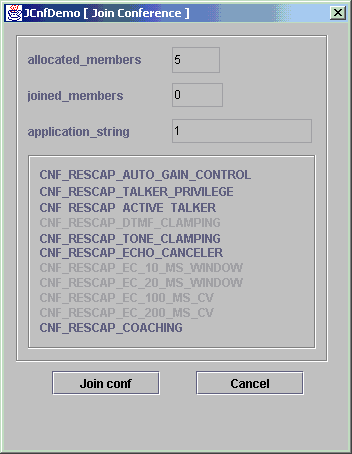
On the JCnfdemo window, select the conference to which you want to add a member and click Join Conf. The Join Conference dialog box displays:
The Conference section displays the number of members allocated to the conference, the number of members currently attending the conference, the conference identifier, and the conference capabilities.
In the application_string field of the Member section, enter a user-defined identifier for the member you are adding to the conference (for example, Mbr 1).
Click Join conf. The new member is added to the Opened Objects list on the main window. Attributes and information display in the Attributes/Information box.
A smiley face displays in the conference activity and the member is added in the coaching panel:
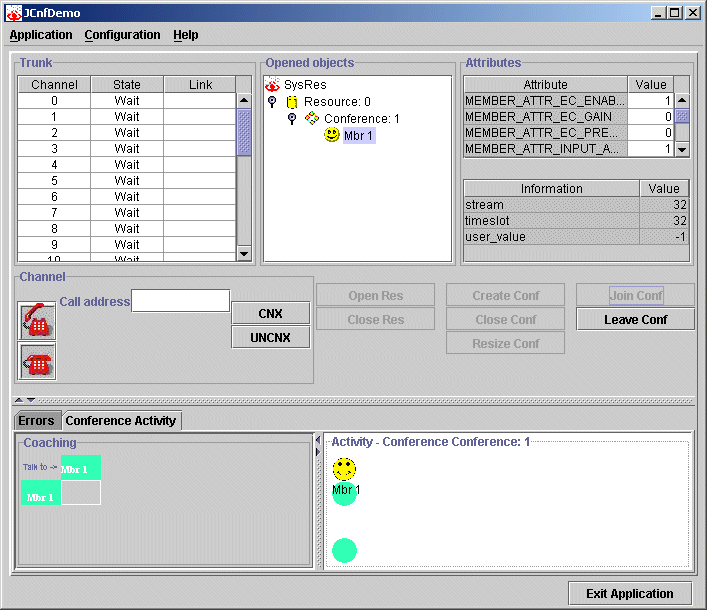
After a conference is created and members are added, the application receives the active talker event (CNFEVN_ACTIVE_TALKERS_CHANGE). JCnfDemo displays an animated .gif in the activity panel to identify the speaker. When the caller stops speaking, the animation stops.
To remove a member from a conference, select the member from the Opened Objects list on the main window and click Leave Conf.