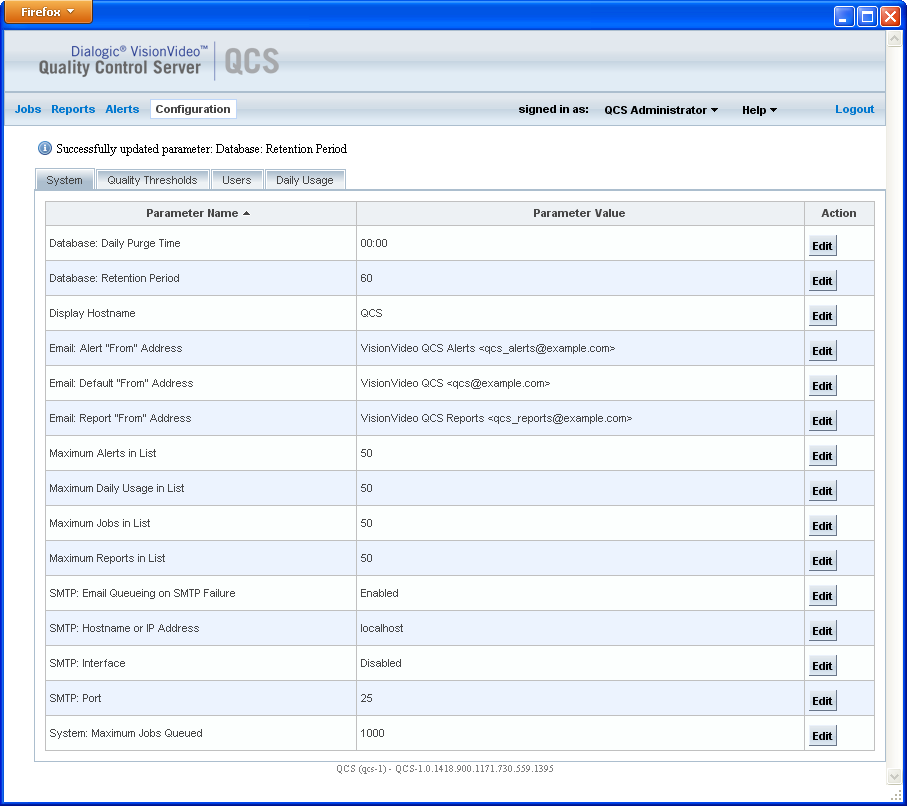
The System page in the Web UI contains parameters that you must configure prior to system operation. You can change these parameter values in real time, while the VisionVideo QCS is running. The changes take effect immediately.
To access the System page, click Configuration on the menu bar and click the System tab. Default values are provided. Click Edit to update a parameter value to suit your environment.
Parameter |
Description |
Database: Daily Purge Time |
Time of day (hh:mm) when records are purged from the database. Default: 00:00 |
Database: Retention Period |
Maximum number of days that VisionVideo QCS records are retained in the database. Records older than this value are purged from the database. Valid values: 1 - 60 Note that a system alert is generated for this parameter when you first access the Web UI, because the initial setting for this parameter is 0. You must specify a non-zero value for this parameter before system operation. |
Display Hostname |
Name of server to be displayed at the bottom of each page in the Web UI. Default: QCS |
Email: Alert "From" Address |
Email address that serves the following purposes:
Be sure to use a valid email address; otherwise, you might miss important SMTP error messages. The format to use for this parameter is the user's display name followed by the email address in angle brackets. Example: VisionVideo QCS Alerts <qcs_alerts@example.com> |
Email: Default "From" Address |
Email address that serves the following purposes:
Be sure to use a valid email address; otherwise, you might miss important SMTP error messages. The format to use for this parameter is the user's display name followed by the email address in angle brackets. Example: VisionVideo QCS <qcs@example.com> |
Email: Report "From" Address |
Email address that serves the following purposes:
Be sure to use a valid email address; otherwise, you might miss important SMTP error messages. The format to use for this parameter is the user's display name followed by the email address in angle brackets. Example: VisionVideo QCS Reports <qcs_reports@example.com> |
Maximum Alerts in List |
Maximum number of job alerts that are displayed on the Alerts page. Larger values result in increased response time. Valid values: 10 - 100 Default: 50 |
Maximum Daily Usage in List |
Maximum number of past days that are displayed on the Daily Usage page. Larger values result in increased response time. Valid values: 10 - 100 Default: 50 |
Maximum Jobs in List |
Maximum number of jobs that are displayed on the Jobs page. Larger values result in increased response time. Valid values: 10 - 100 Default: 50 |
Maximum Reports in List |
Maximum number of reports that are displayed on the Reports page. Larger values result in increased response time. Valid values: 10 - 100 Default: 50 |
SMTP: Email Queueing on SMTP Failure |
Enables email to be queued for later delivery on SMTP failure. Valid values:
Default: Enabled For more information on this parameter, see Details on Email Queueing on SMTP Failure. |
SMTP: Hostname or IP Address |
Hostname or IP address of SMTP server to be used for sending email to users. Default: localhost |
SMTP: Interface |
Enables SMTP for sending email to users. Valid values:
Default: Disabled |
SMTP: Port |
Port number of SMTP server to be used for sending email to users. Default: 25 |
System: Maximum Jobs Queued |
Maximum number of jobs that the job queue can hold. If the queue is full and a new job is submitted, the QCS rejects the job and generates an alert. Valid values: 1 - 2000 Default: 1000 For more information on this parameter, see Details on Maximum Jobs Queued. |
Occasionally, the QCS may be unable to connect to the SMTP server. This can be due to network errors, network maintenance, issues with or overloading at the SMTP server itself, or any number of other issues.
When the QCS detects this issue, it raises an alert. If Queue Email on SMTP Failure is set to enabled, any emails containing reports or alerts are saved until the SMTP server becomes available. The QCS will then attempt to resend the emails in the queue. If set to disabled, any emails containing reports or alerts generated during the down time are discarded.
The QCS maintains a queue of submitted jobs and then processes the jobs on the queue. If the rate of job submission is higher than the rate at which the jobs are being removed from the queue for analysis (the job execution rate), the job queue will grow.
The job execution rate must be equal to or higher than the job submission rate over some long period of time (for example, 1 day). The queue allows for burst submissions where the submission rate is temporarily higher than the execution rate. The Maximum Jobs Queued parameter sets the size of the queue. A larger queue requires more disk space and may temporarily mask a mismatch between the submission rate and the execution rate. The execution rate can be increased by adding more CPU power to the server (faster processors or more cores).
Following is an example of the System page from the Configuration menu.