To allow you to upgrade your computer to a new system or recover from a network card failure, Dialogic allows you to “re-host” your licensed software from one computer system to another. This process involves returning your current license and receiving another one.
If you prefer to work with Dialogic Technical Services and Support, refer to Working with Dialogic Technical Services and Support to Re-Host License Files.
The activation center Web site allows you to automatically re-host your licensed software one time without technical support. For subsequent re-hosts you will need to contact Dialogic Technical Support.
Note: Use the buttons on the screens to navigate. Do not use the Back and Forward buttons on your browser to navigate.
Follow the steps below:
Visit the Dialogic activation
Web site at: www.dialogic.com/activation
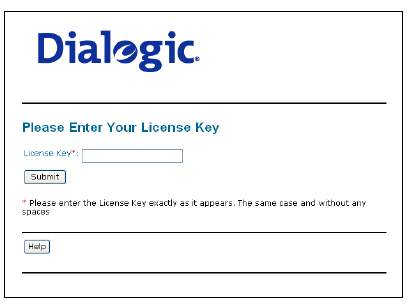
The following screen appears.
Enter your original License Key. (Found on your License certificate or in the electronic version of the license that was emailed to you when you purchased/obtained your license.) Click Submit. The following screen appears.
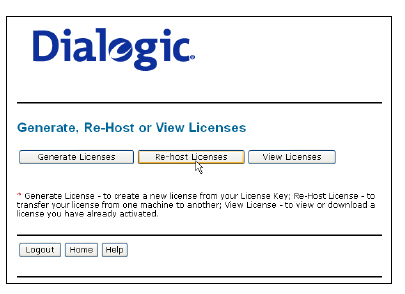
Click Re-host Licenses. The following screen appears.
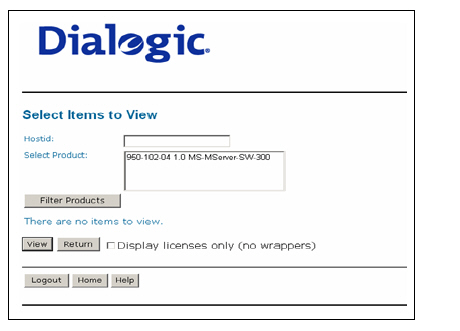
Select your product and click Return to return the license to Dialogic. The following screen appears
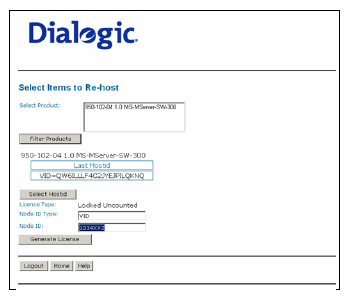
In the Select Product box
click the product for which you are re-hosting. Select the Node ID
Type and enter the Node ID of your PowerMedia WMS as it appears from
the Web UI. (Refer to Obtaining
the Node ID from Your System.)
Click Generate License. The following
screen appears.
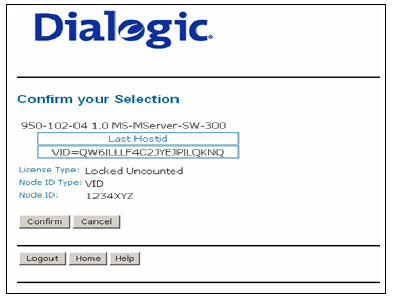
Verify that the information on this screen is correct and click Confirm. The following screen appears.
Note: Be sure you enter the correct Node ID. If you enter an incorrect Node ID, your license will be invalid when you try to use it on your PowerMedia WMS.
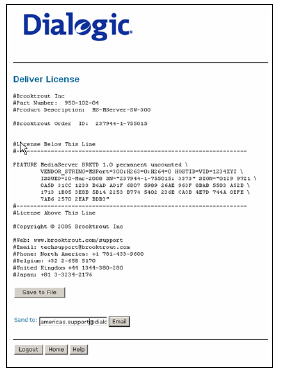
Click Save to File to save the license file to your computer or click Email to have the License file emailed to you. If you clicked Save to File, the File Download dialog box appears.
Click Save and save the file to your desktop.
You will see a message indicating that the download has completed and the file is saved.
Install the license file
on your PowerMedia WMS or copy it as is into the following directory
of your PowerMedia WMS:
/opt/snowshore/license
Make sure the file has read permission.