Follow the steps below to kickstart the Red Hat OS by copying the kickstart script from the network. Your system must meet PowerMedia WMS hardware requirements and have a blank hard drive.
Connect your system to the network using your first logical network interface (eth0).
Copy the ks.cfg file to a remote file/web server location on
your network.
For example: http://146.152.83.188/snowshore/ks.cfg
In this example, another PowerMedia WMS system is used as the web/file
server.
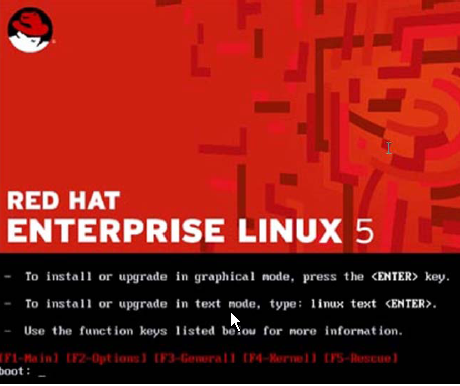
Insert the Red Hat Enterprise Linux 5.2 Server installation CD #1 or DVD into the system’s CD/DVD drive and set the system BIOS to boot from CD and restart the system. The following screen appears:
At the boot: prompt, enter the location of the remote file/web server that contains the kickstart script in the following method.
linux ks=http://146.152.83.188/snowshore/ks.cfg ksdevice=eth0
Press Enter and the process starts. The command above contains the network location on the remote file server where the ks.cfg file is located. The command indicates to the system to use eth0 (first NIC on the system) to initialize the IP address for the system.
If the system is on a DHCP network, it automatically searches for an IP address to obtain for the current system so you can skip this step. However, if there is no DHCP server on the network, the system displays the following menu to obtain an IP address before it copies the file from the remote server:
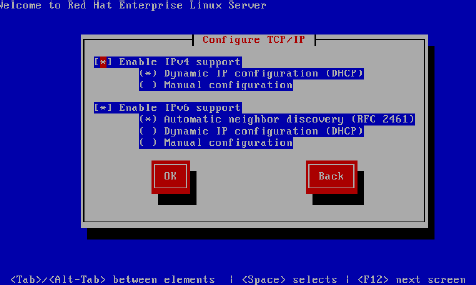
Follow the appropriate menus to set up your system with a Static IP address. If you are using IPv4, select Manual configuration under Enable IPv4 support and deselect Enable IPv6 support. Click OK.
On the next screen, provide the IP address, subnet, gateway IP address, and the nameserver IP address and click OK.
The installation progresses automatically and performs the following:
Checks for hardware present.
Starts up the network connection.
Copies the ks.cfg file.
Checks for dependencies.
Installs the packages from the CDs/DVD.
If installing from DVD, no other prompts appear. If installing from CDs, provide the proper Red Hat Installation CD number as prompted.
When all packages are installed, the rebooting system message appears. If your CD/DVD drive does not automatically eject, manually eject the drive before the system starts to reboot.
The following is the status after the system reboot:
The Red Hat OS is installed.
The network has its IP address configured based on the Static IP/DHCP option selected above.
The system is restarted and shows the text based on the Red Hat login prompt.