The following sections provide examples of basic commands.
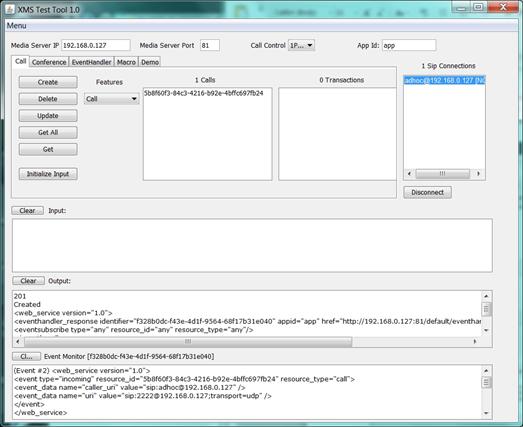
The Call tab is used to handle setup and teardown of a call. Inbound calls require a SIP softphone to initiate the call using any SIP user name (or extension). When a call is made to the IP address of the PowerMedia XMS, notification of the call is sent to XMSTool and displayed in the Input window as shown below:
The call offered event ("incoming") can be observed in the Event Monitor window. Proceed as follows to reply to the event:
In the Call tab, select the ID of the received call.
Select AnswerCall from the Features drop-down list. Alternately, AcceptCall could be selected if, for example, early media were desired. This would allow a file to be played to the caller before the call is answered.
Click Initialize Input to create a reply to the call
offered event.
The answer message will be automatically generated. Note that the default
values set in the message may be edited if desired.
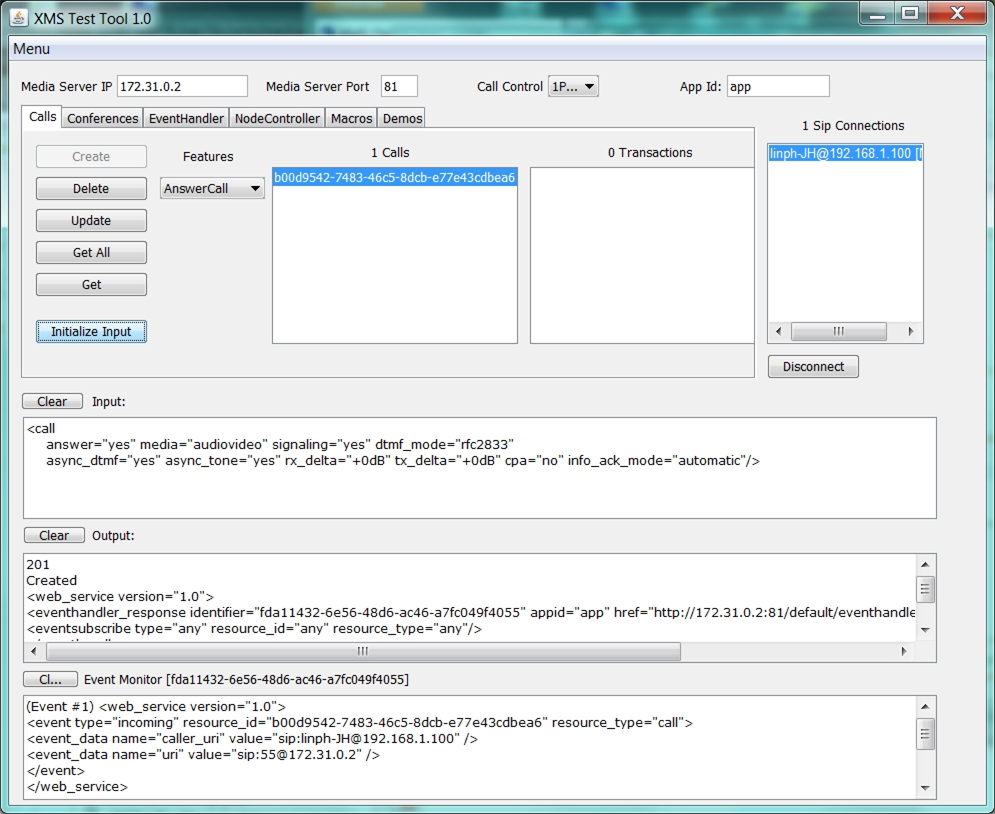
Click Update to send the answer message.
The connection to the SIP softphone is now established.
The Call tab is used to handle outbound call setup and teardown. The SIP softphone to call should be set in a mode where it can detect incoming calls and either ring or automatically answer them.
Click Initialize Input to generate a RESTful Call command.
Edit the default command. For example, the destination_uri and source_uri should reflect the SIP address of the SIP softphone being called and the PowerMedia XMS, respectively. Other default values may be adjusted if desired.
Click Create to launch the call.
The SIP softphone will ring and the call is connected when answered.
Once a call is connected, media commands may be issued. In the following example, a multimedia file is played.
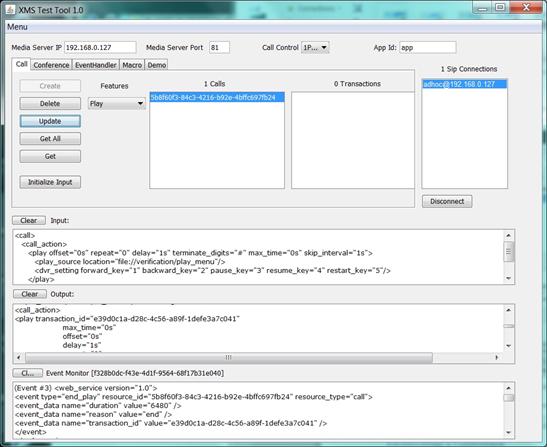
Select the call ID.
Select Play from the Features drop-down list.
Click Initialize Input to provide a call action command
to play a file.
Although a default file and default parameters are provided, these
may be edited before being sent.
Click Update to send the message.
If successful, the audio/video is heard/seen on the SIP softphone.
The response to the play command is displayed in the Output window
when the play is initiated, and a play termination event seen in the
Event Monitor window once the play is complete.
Once a call is idle, a video conference may be started. First, create a conference in which to add the call.
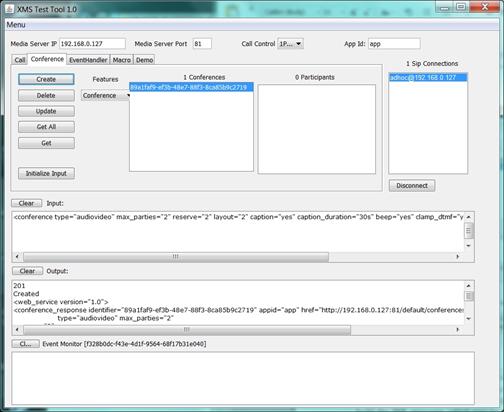
Click the Conference tab.
Click Initialize Input to get the default conference creation parameters. Edit them if desired.
Click Create to establish the conference and generate a conference ID.
Click the Call tab.
Select the call ID and the ID of the conference just created.
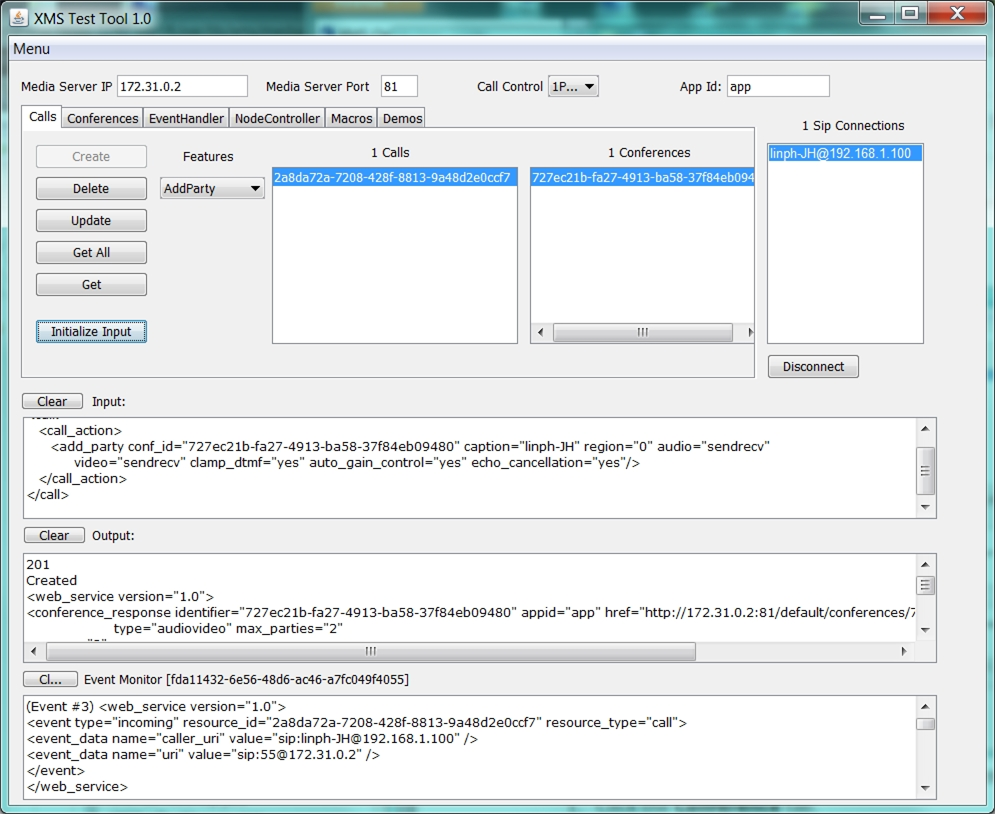
Select AddParty from the Features drop-down list.
Click Initialize Input to build the XML message, which may be edited as desired.
Click Update to add the caller to the conference.
The SIP caller will be in a single-person conference.
For a multi-party conference, make additional calls and add each to the conference using the above procedure.
The conference may be torn down and cleaned up in the following order:
Click the Conference tab.
Select the call ID and click RemoveParty from the Features drop-down list.
Repeat for each party in the conference.
Select the call ID and click Disconnect for each party in the conference.
Select the conference ID and click Delete.