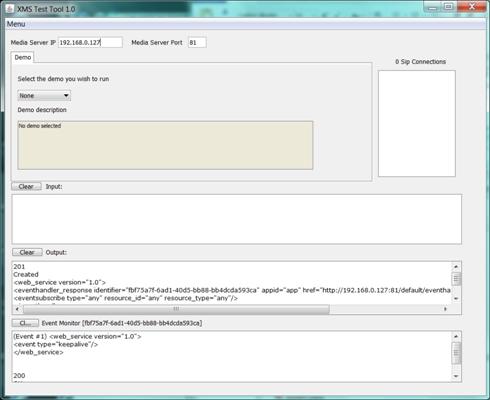
In this mode, XMSTool is used to execute predefined demos or macros that string together a series of RESTful request and response messages to make up a simple application, such as answering a call and playing a file or putting a caller into a video conference.
The Demo screen provides access to the demos listed below.
Note: All demos are multimedia – both audio and video.
Play
Answers an inbound call and plays a file.
Collect
Answers an inbound call (audio only) and collects four (4) digits.
When the 4th digit is entered, the digit collection event is seen
in the event handler window. The call will be automatically disconnected
several seconds after the digit event is returned.
Join
Joins two inbound callers into a conference. The callers remain connected
for ten (10) seconds, and then the conference is torn down.
Conference
Joins a single inbound caller into a conference. The caller remains
connected for eight (8) seconds, and then the conference is torn down.
Confplay
Joins two inbound callers into a conference and a file is played. After
the play terminates, the conference is torn down.
Record
An inbound caller is prompted by a file. After the prompt is played,
record mode is entered. The recording can be terminated with # or
ends by itself after ten (10) seconds.
Proceed as follows to run a demo:
Select a Demo from the drop-down list.
Place an inbound call from a SIP softphone. Any SIP user name (or extension) may be used with XMSTool, as the scenario selection is done through the drop-down list.
Make a call to the IP address of the PowerMedia XMS. The call
will be answered by PowerMedia XMS and XMSTool, and the appropriate
scenario will be played.
Note:
Several scenarios will use two callers.
Details about the application’s call flow may be found in the XMSTool’s session log, which is located in the testing directory and named xmstool.log. The logger overwrites the log file each time XMSTool starts.
Note: All demo scenarios start when an inbound call is received. Currently, outbound calls cannot be used.
Demos are also accessed through the command line interpreter (CLI) when a windowing system on the host computer is not available.
Proceed as follows to use the CLI interface:
Start the tool from the operating system command prompt:
> java –jar dist/XMSTool.jar –r -m <xms_server_ip_address>
Upon successful connection to PowerMedia XMS, all available test scenarios for inbound calls are displayed:
XMSTool Application
-------------------
Demos
-----
[collect]
Description: Play and collect demo
[conference]
Description: 2 party 10 second conference demo
[confplay]
Description: 2 party conference play demo
[join]
Description: Join 2 calls for 10 seconds demo
[play]
Description: Play demo
[record]
Description: Record demo
Waiting for incoming calls ...
XMSTool>
Access a scenario by placing a SIP video call to the IP address of PowerMedia XMS using the test name as the SIP user name. For example, entering Sip:play@192.168.1.100 will connect to the PowerMedia XMS at IP address 192.168.1.100 and execute the multimedia file "play" test scenario.
Stop XMSTool using the exit command at the CLI prompt.