This section provides information about the RemoteRtfTool utility (RemoteRtfToolInstaller.msi) and installation log files available to enhance the user experience. It contains the following topics:
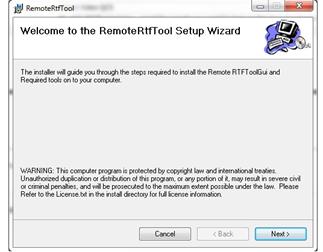
The RemoteRtfTool utility is provided with the PowerMedia XMS and is accessed through the Downloads > Tools page from the Console and double-click RemoteRtfToolInstaller.msi.
Click Next.
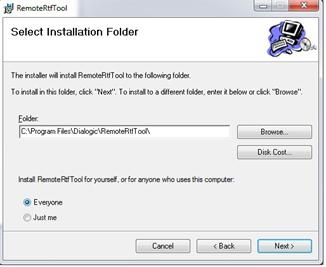
Browse to the folder indicated in the screen capture above and click Next to start the installation. When the installation is complete, the following screen appears:
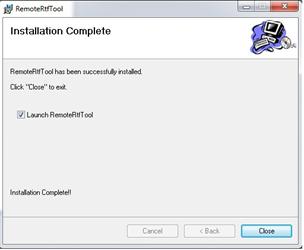
The RemoteRtfTool launches and displays the Rtf Configuration Manager window.
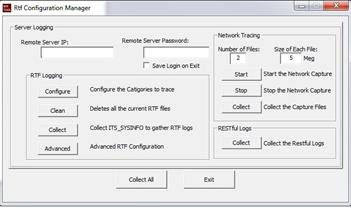
The Rtf Configuration Manager contains four sections:
Clicking Collect All collects all log files in accordance with the default settings of the PowerMedia XMS. Proceed below to change the default settings.
Enter the IP address on which to perform the trace in the Remote Server IP field.
Enter a valid password in the Remote
Server Password field.
Notes: The password is not the Console
password, but rather the combination used for UserName: root and Password:
powermedia.
For stand-alone RPM installations, password modification is not necessary
as the installation script does not change the password to "powermedia"
as it does with the .ISO install.
Click the check box if you wish to save the login upon exiting the Rtf Configuration Manager.
The buttons on the RTF Logging section are described below:
Configure
Click Configure to configure the categories to trace for both Native and MSML modes.
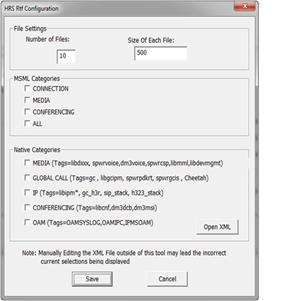
In File Settings, enter the number of files to trace and the maximum size of each file.
In MSML Categories, enter the categories you wish to trace.
In Native Categories, enter the media engine categories you wish to trace.
Click Save to save configuration settings.
Clean
Deletes the currently stored RTF log files.
Collect
Runs ItsSysinfo used to gather
RTF log files.
Advanced
Provides the advanced RTF configuration settings.
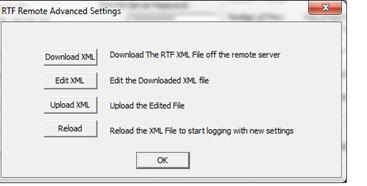
Download XML
Downloads the RtfConfigLinux.xml file.
Edit XML
Navigates to the RtfConfigLinux.xml file and opens it for
editing.
Upload XML
Uploads the edited file to PowerMedia XMS.
Reload
Causes the RTF service to reread and restart RTF logging according
to the new settings.
Number of Files
Enter the number of network files to trace.
Size of Each File
Enter the maximum size of each file.
Start
Starts the network capture.
Stop
Stops the network capture.
Collect
Collects the captured files and copies the data to the specified location.
Collect
Collects the captured RESTful logs and copies the data to the specified
location.
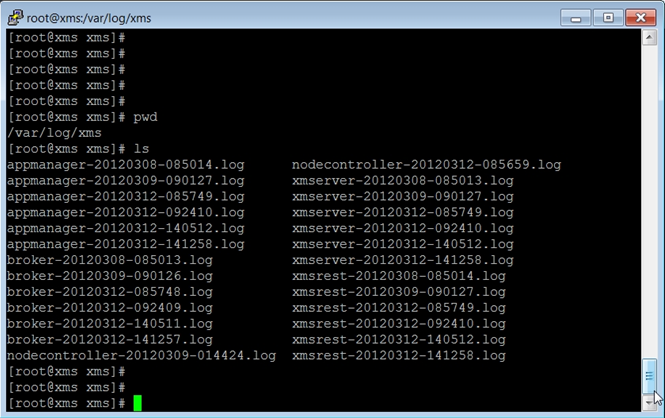
The default PowerMedia XMS log location is /var/log/xms. Consult these log files when troubleshooting specific PowerMedia XMS problems.
Note: Multiple log files are created and capped at 2 MB each.
Most of the PowerMedia XMS logs are not accessible through the Console.
Note: RESTful logs can be collected by choosing "Collect the RESTful Logs" in the RemoteRtfTool utility available for download in the Console.
To retrieve the logs, it is necessary to access the PowerMedia XMS using secure shell (ssh).
The "root" user’s default password is "powermedia". If you wish to change the password, do so before proceeding.
Note: For stand-alone RPM installations, password modification is not necessary as the installation script does not change the password to "powermedia" as it does with the .ISO install.
Access the files from /var/log/xms and copy the logs to the desired location. See the example below:
The logrotate capability in Linux is used to rotate, compress, and/or mail system log files. It is normally run from cron. It can be configured with the file /etc/logrotate.d/xms which is specified in the command line when logrotate is run.
The logrotate program deletes any PowerMedia XMS log files older than seven (7) days. To modify this number, access the PowerMedia XMS logrotate configuration file and change the "maxage" field from 7 to the number of days that you wish to retain the logs.
/var/log/xms/*.log {
daily
maxage 7
missingok
rotate 0
postrotate
kill -HUP `cat /var/run/nodecontroller.pid`
kill -HUP `cat /var/run/appmanager.pid`
kill -HUP `cat /var/run/broker.pid`
kill -HUP `cat /var/run/xmserver.pid`
kill -HUP `cat /var/run/xmsrest.pid`
endscript
}
When reporting an issue to Dialogic Technical Services and Support, be prepared to provide the following information:
Full description of the issue.
Version of the PowerMedia XMS software you are using.
PowerMedia XMS log files.
Whether the issue is reproducible; the steps that you took.
Note: The latest software update and release notes are available from the Dialogic website at http://www.dialogic.com/support.