You are here: SwitchKit Installation and Maintenance Guide > 2 Installation > Configuring SwitchKit to Run from the Start Menu on Windows
Configuring SwitchKit to Run from the Start Menu on Windows

This procedure describes how to configure the LLC and SwitchManager to run from the Start Menu.
Determine if your connection parameters for starting the LLC and SwitchManager are constant and do not change frequently.
To run SwitchKit in a development environment where resources are shared, set up the shortcuts. Shortcuts ease the process for starting LLC and SwitchManager. Use shortcuts only if the connection parameters for starting LLC and SwitchManager do not change frequently. If setup information changes frequently, start these processes from the command line.
1 Right-click the Windows Start button then click Explore All Users.
2 Double-click Programs then double-click SwitchKit.
3 In the SwitchKit folder, right-click LLC.
4 Go to Properties then click the Shortcut tab. The next dialog box opens:
5 In the input field Target specify the start-up argument by typing them behind the quotes following llc.exe. For possible arguments refer to the Running the LLC procedure.
6 Click Apply to apply your specification.
7 Click OK to close the dialog box.
8 In the Explore All Users window right-click SwitchManager.
9 Go to Properties then click the Shortcut tab. You see the following dialog box:
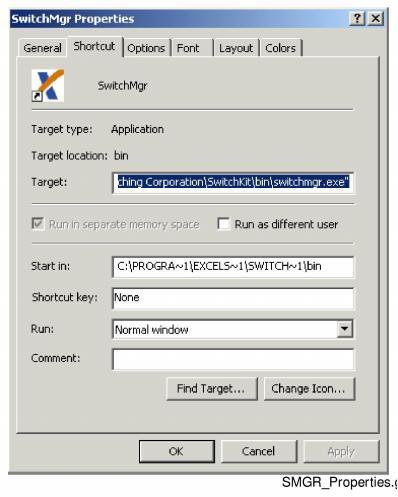
10 Go to the Target field. At the end of the line outside the quotation marks. Type your configuration file name. (example: mysystem.cfg) The line should read:
"C:\Program Files\Excel Switching Corporation\SwitchKit\bin\SwitchManager.exe" mysystem.cfg
If there is no configuration file specified, SwitchManager uses the system.cfg file provided with the installation in the SwitchKit folder.
11 In the Target field add the start-up arguments by typing it outside the quotation marks, but before your specified configuration file. For possible arguments refer to the SwitchManager Arguments, procedure. For example, the input could read:
"C:\Program Files\Excel Switching Corporation\SwitchKit\bin\SwitchManager.exe" -n mysystem.cfg
12 Click Apply to apply your specification.
13 Click OK to close the dialog box.
