Using Dialogic® Diva® Media Boards as DSP Resource Boards with Dialogic® Diva® softIP for SIP Software
All Diva Media Boards with DSPs, except Dialogic® Diva® PRI/E1/T1-8 PCI Media Boards, can be used as conventional TDM boards and/or as DSP resource board. In the resource board mode, the external interfaces are disabled and the Diva Media Board functions only in combination with Diva softIP Software and thus provides functions to voice, clear channel fax and clear channel modem connections. Clear channel fax can be used by PSTN-IP gateways that do not support T.38 fax so that the fax signal is transmitted in clear channel mode.
If the Diva softIP software is used together with the Diva Media Board as resource board, clear channel fax is used for fax transmission. If the Diva softIP software is used as stand-alone product, T.38 Fax is used.
If Diva Media Boards with DSPs and the Diva softIP software are installed in the same system, calls that are initiated without the need to allocate hardware DSP resources (e.g. voice) are preferably routed via the Diva softIP software. If all available channels of the Diva softIP Software are used and no channels of the Diva Media Board are reserved for DSP usage, the remaining DSP-enabled channels of the Diva Media Board are also used for non DSP-related calls.
During a call, the call characteristic may change and may require a switchover from the Diva softIP board to the Diva Media Board or vice versa. In this case, the Combined Board internally reroutes the call using the required resources. To enable the switchover, you need to combine both boards in the Board Configuration page.
To combine a Diva Media Board with Diva softIP Software, follow these steps:
In the Board Configuration page, click the Diva Media Board or the line of a Diva Multiport Media Board you want to combine.
Next to Interface Mode/Resource Board, select Resourceboard mode and click Save.
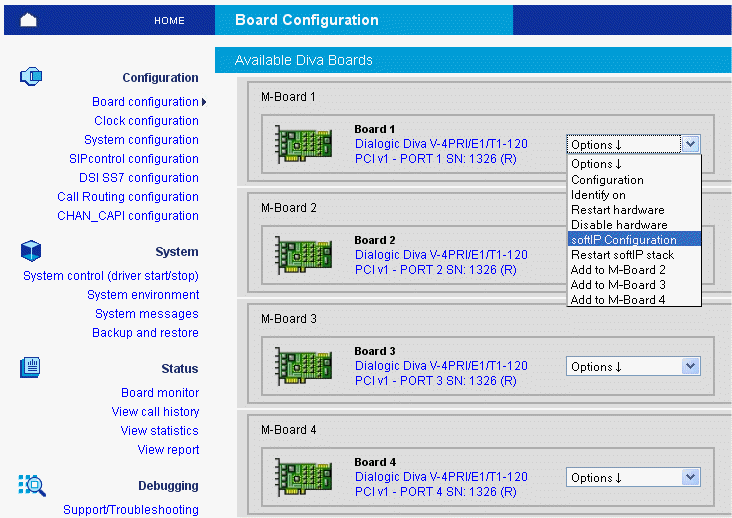
Once the Diva Media Board is used as DSP Resource Board, the line of the softIP board is no longer shown in the Board Configuration page, and an (R) is added to the name of Diva board.
To configure the softIP board, click the drop down menu next to the resource board and select softIP Configuration: