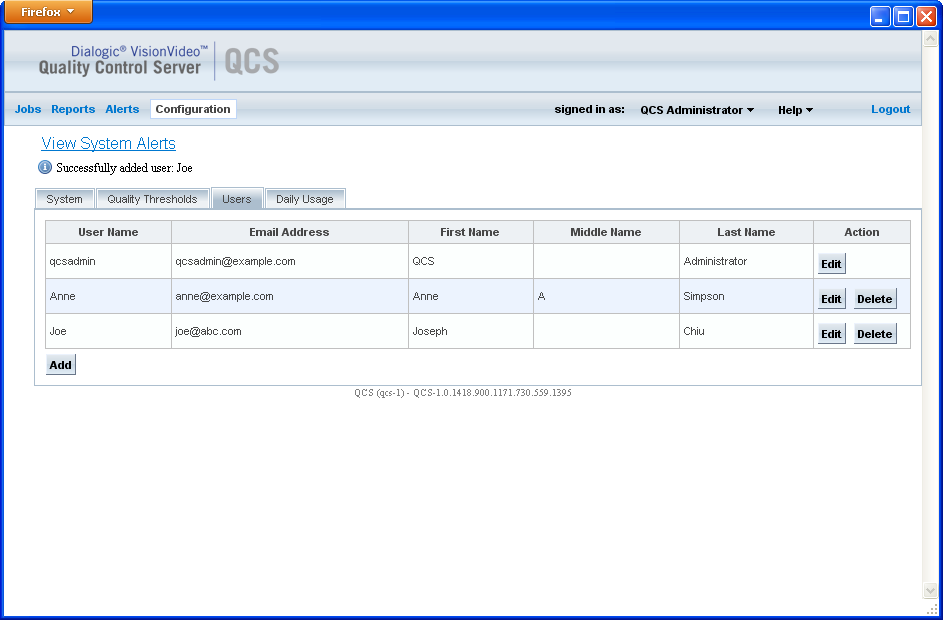
The Users page lists current users and allows you to manage user accounts. To access the Users page, click Configuration on the menu bar, and click the Users tab.
The VisionVideo QCS provides a default user account as follows:
Username: qcsadmin
Password: qcsadmin
Dialogic recommends that you change the password for this default account after the first login and that you enter the email of an administrative user for future password recovery. In addition, it is recommended that you create a user account for each user of the system.
Following is an example of the Users page from the Configuration menu. It shows the default user and two other users that have been added.
The following topics provide more information about managing user accounts:
To add a user account, click Add. The Add User page is displayed. Enter the appropriate field values and click Save.
Field |
Description |
User Name |
User name |
Email Address |
The user's email address; for example, anne@example.com. The email address is used to receive alerts and reports, as well as for resetting the password if necessary. |
First Name |
The user's first name |
Middle Name |
The user's middle name |
Last Name |
The user's last name |
Password |
The user's password Passwords must be at least 3 characters long and may contain any of the following characters: letters, digits, underscores (_), and periods (.). |
Confirm Password |
The user's password, entered once again as confirmation |
To edit a user account, click Edit for that user. The Edit User page is displayed. Modify field values as needed and click Save. The User Name field is not editable.
You can also access the Edit User page by placing your mouse pointer over the user name in the menu bar (next to signed in as), and clicking on User Profile.
Field |
Description |
Email Address |
The user's email address; for example, anne@example.com. The email address is used to receive alerts and reports, as well as for resetting the password if necessary. |
First Name |
The user's first name |
Middle Name |
The user's middle name |
Last Name |
The user's last name |
Change Password |
To change the user's password, click in the check box. Additional fields, Password and Confirm Password, are displayed. |
Password |
The user's password Passwords must be at least 3 characters long and may contain any of the following characters: letters, digits, underscores (_), and periods (.). |
Confirm Password |
The user's password, entered once again as confirmation |
To remove a user account, click Delete for that user. You will be asked to confirm the operation. Once confirmed, the user account is deleted.