In the System section, you can configure the following types of parameters:
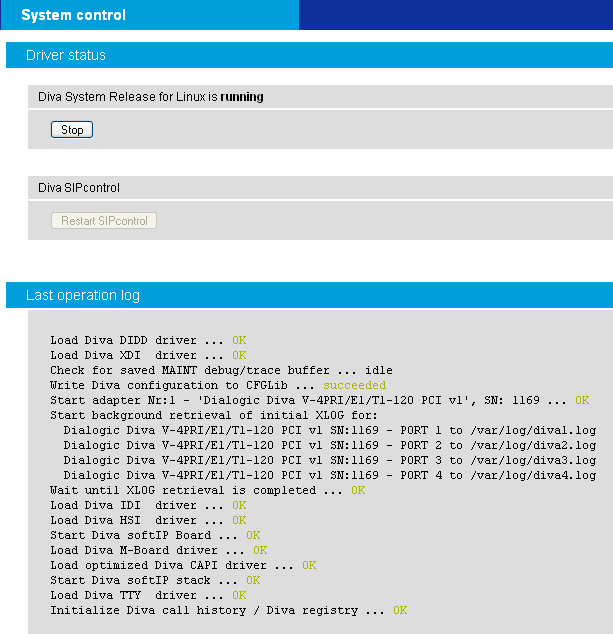
If you click System control (driver start/stop) the following page opens, where you can start and stop Diva drivers. The Diva WEB server will detect the current state of the drivers and will open the appropriate page. Moreover, this page allows you to view the log file of the last driver start/stop configuration procedure.
Note for Dialogic® Blue™ Telephony Boards:
Dialogic Blue Telephony Boards can be started in kernel mode or user mode. Normally, they are started in kernel mode. If the kernel mode fails, they are started in user mode. The Last operation log in the web interface will show you in which mode the driver was started. For more information see also, Verifying the Operating Mode of the Dialogic® Blue™ Telephony Boards.
You can also verify the modus under Board monitor of the web interface. To do so:
Click Board monitor on the left hand side of the web interface.
Click the management interface icon of the M-Board, the Telephony Board belongs to.
Go to Status\XDI\A1\UserMode. A value of 0 indicates that the board is running in kernel mode. A value of 1 indicates that it is running in user mode.

This page allows you to get important information about your system (kernel version, PCI hardware configuration, system resources, etc.). Most of the information is retrieved from the /proc file system.
This page allows you to view the last 200 messages from the kernel ring buffer. This is equivalent to the command dmesg > msg.txt && tail -n 200 msg.txt.

If you need to create a backup of your configuration, you can do so with the backup and restore functionality.

To create the backup file:
Click Create backup file.
After the backup file is created, you have the option to save the file.
If you click Download backup file, a window opens giving you the options to either open the file or to save the file. Choose one option and click OK.

To restore the backup file:
Next to Upload backup file, click Browse.
Go to the directory where you stored the file and click Open.
Click Upload.
After the upload has finished successfully, restart the drivers as described in System Control (Driver Start/Stop).
