There are two ways to view job alerts:
In the jobs list section of the Jobs page. When a job results in an alert being issued, the alert type is indicated in the jobs list; see Viewing Job Results. This value is a link to the Alert Details page for that alert.
In the job alerts section of the Alerts page. To view job alerts on the Alerts page, click Alerts on the menu bar.
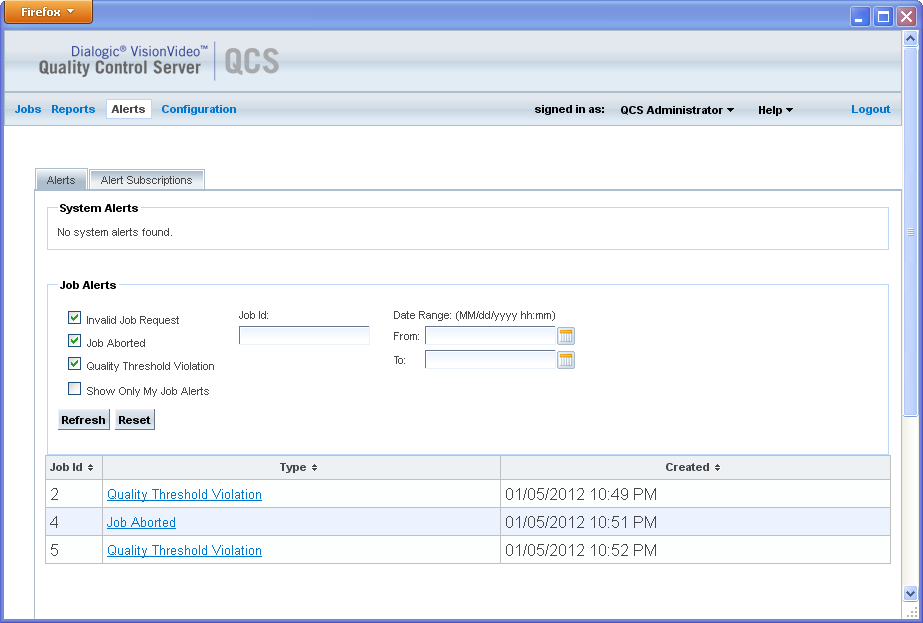
The list of job alerts on the Alerts page can only be viewed after setting some filter parameters. Select the attributes of the job alerts you wish to view, then click Refresh. Job alerts that match the selected attributes are then displayed in the table.
Click Clear to clear the filter parameters (but does not clear the list of job alerts). The maximum number of job alerts displayed on this page is controlled by the Maximum Alerts in List system parameter; see Configuring System Parameters.
The following table describes the filter parameters.
| Parameter | Description |
| Quality Threshold Violation | Include alerts for quality threshold violation. |
| Job Aborted | Include alerts for aborted jobs. |
| Invalid Job Request | Include alerts for invalid job requests. |
| Show Only My Job Alerts | Include only job alerts to which the user is subscribed. |
Job Id |
Include job alerts for a specific job based on its job ID. |
| Date Range | Include job alerts created within the date/time window specified by this parameter. This is an optional parameter. If not specified, the filter is applied to all jobs in the database. |
The results of the filter are listed by type and date/time created. You can click the small arrow key next to a parameter in the table to change the sort order of the alerts displayed.
The value listed in the Type column is a link to the Alert Details; see Viewing Alert Details.
Following is an example of an Alerts page from the Alerts menu. It shows system alerts and job alerts.