Using Dr. Watson to obtain an Application Dump
Symptom:
Often times when debugging Dialogic application and library exceptions it is necessary to obtain an application stack dump. This dump will contain information about the API calls at the time of failure and with the correct debugging tools the fault can be isolated to the exact function that was failing. This can be crucial for resolving many application and library exception issues.
Reason for the problem:
Obtaining a useful dump sometimes can be difficult. The most common way for obtaining this dump file is by using Dr. Watson.
Fix / Solution:
Dr. Watson 32 is a powerful error collection tool that is shipped standard with the Windows operating system. It can be configured to automatically launch when an application error is encountered and it can also be configured to generate several levels of dumps containing the error information.
The Dr. Watson configurator can be launched by doing the following:
1. Click Start, and then click Run.
2. Type drwtsn32, and then click OK.
Then the following screen will come up:
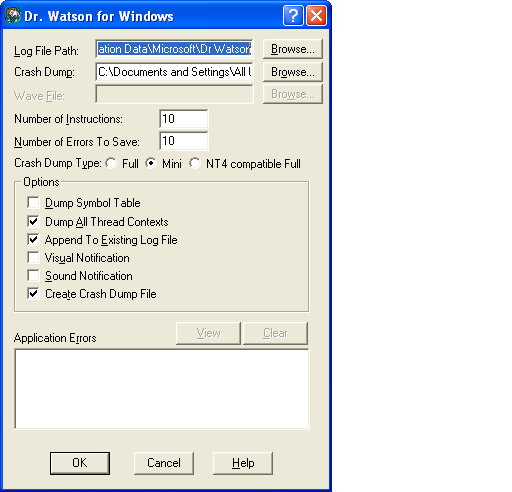
Here the log file path and file dump path can be configured. By default these values point to drive:\Documents and Settings\All Users.WINNT\Application Data\Microsoft\Dr Watson
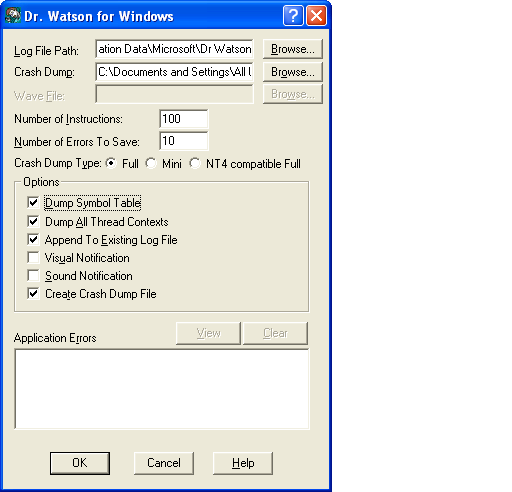
For obtaining a trace suitable for use by Dialogic support representatives the following should be set:
- Number of instructions should be set to 100
- Crash Dump Type should be set to full
- Enable: Dump Symbol Tables, Dump All Thread Contexts, and Create Crash Dump File
The resulting Section should look as follows:
Lastly, what needs to be done is ensure that no other application has registered to be the default application exception handler. Sometimes, some programing tools (such as Microsoft Studio) will change the default handling of exceptions to their tool. To use Dr. Watson you will have to reset these settings. Finding out what tool is currently used can be obtained by looking at the registry key.
HKEY_LOCAL_MACHINE\Software\Microsoft\Windows NT\CurrentVersion\AeDebug
In this it will have the exe name for the tool that is to be called in the Debugger key. If this is set to drwtsn32 then nothing needs to be done. If another tool is there you will need to reset it to Dr. Wastson. This is done by doing the following
1. Click Start, and then click Run.
2. Type drwtsn32 -i, and then click OK.
When this is done you should get this message box.
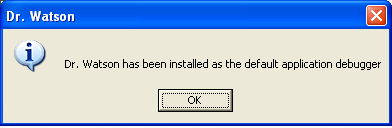
The registry key will then be updated to contain
drwtsn32 -p %ld -e %ld -g
At this point everything is configured. When the application exception occures the log file and dump files specified inside the 'Log File Path:' and 'Dump File:' should be packaged up and sent to an application developer or support engineer for review.
Product List
This applies to all current API libraries on the Windows OS.
Related Documentation
For more information on the Dr. Watson Tool you can reference the MSDN artical on the tool
http://support.microsoft.com/kb/308538/EN-US/
Also, additional infomation specific to XP error handling service can be found at
http://support.microsoft.com/kb/310414/EN-US/
First published: 06-Apr-2008
Open access: Product rule: ; Page rule: Auto
